How to make a new release
Bugsmirror MASST enables seamless creation and deployment of new application releases. With MASST, you can configure security settings, enable or disable features, and generate a release-ready build efficiently.
This guide walks you through the step-by-step process of creating a new release.
Prerequisites
Before creating a release, ensure:
- The application is already added to the MASST portal.
- Required configurations are created (if applicable).
- Necessary feature selections are identified.
Step 1: Initiate a New Release
- Log in to the MASST portal.
- Navigate to the dashboard.
- Click on the New Release button located at the top-left corner.
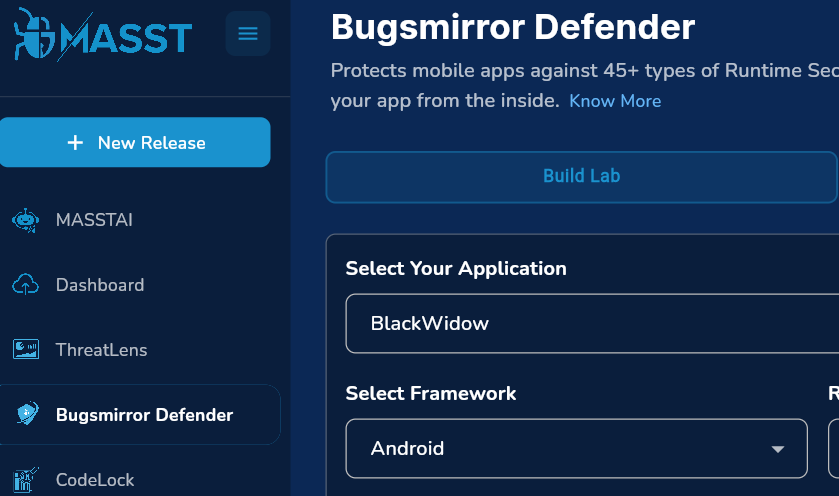
Step 2: Select Application:
- Choose the application for which you want to create a release.
- To onboard a new application, click on Add App.
Refer to: Add a New Application Go to Guide
Step 3: Select features:
Choose features to apply to your release.
- Enable all features.
- Or select specific features based on your requirements.
Step 4: Configuration & Integration
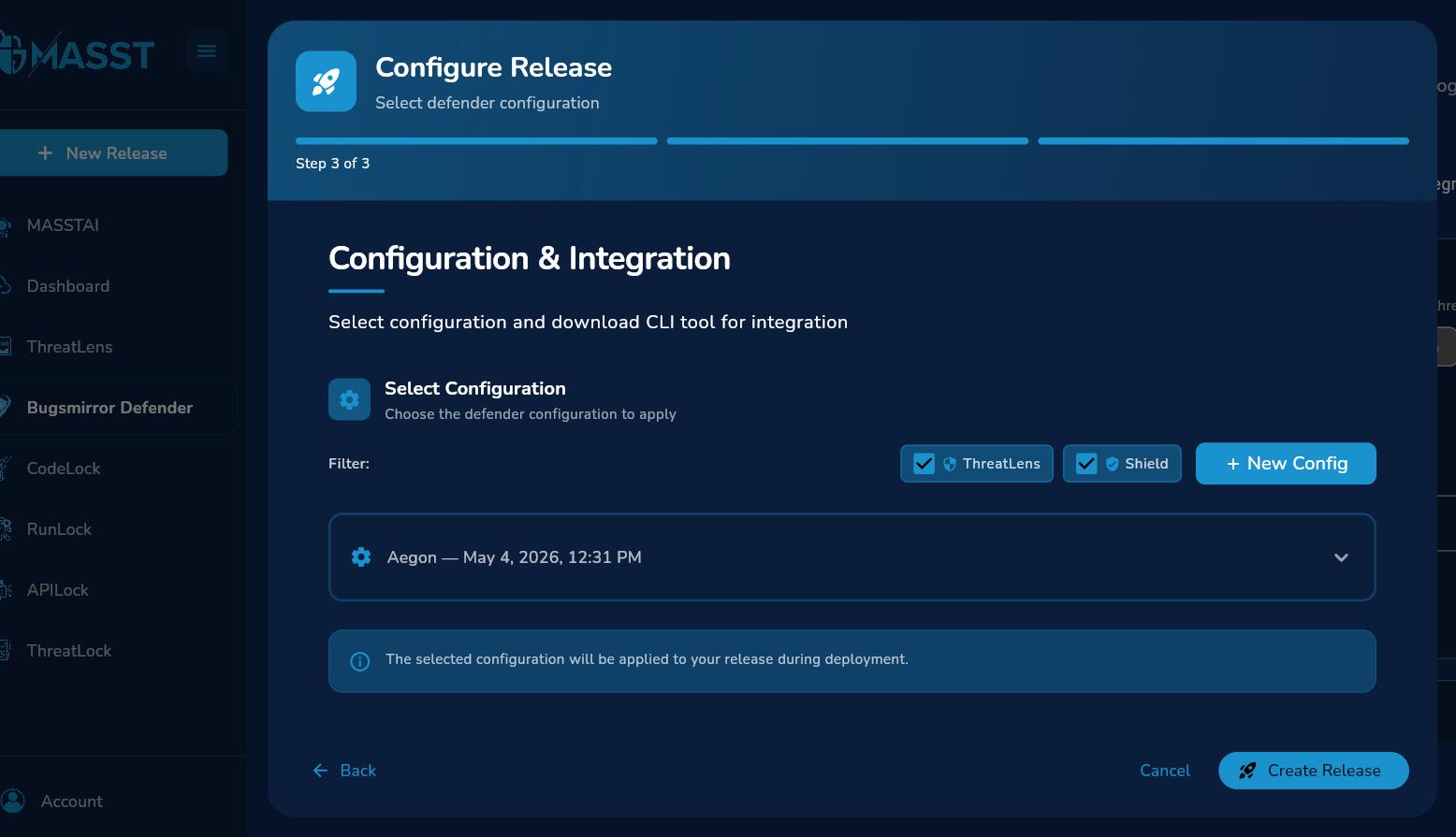
- Choose an existing configuration or create a new one.
- Configurations define how selected features are applied to the application.
Refer to: Create a New Configuration Go to Guide
Step 5: APILock credentials and SSL settings
Note: Skip this step if APILock is not enabled.
When APILock is enabled, an additional security configuration panel will appear.
Authentication Options
-
Enable:
- No Sign-In Required, or
- Create Account option
-
Alternatively, configure authentication by providing credentials.
SSL Pinning Configuration
⚠️ Important:
Disable SSL pinning when enabling APILock to allow API traffic inspection.
-
MASST Defender enforces SSL pinning at runtime
-
Disabling it here will not compromise overall API security
Additional Settings
-
Enter the Domain Name.
-
Enable Update Credentials on Release Enable if required.
Step 6: Download & Install CLI Tool
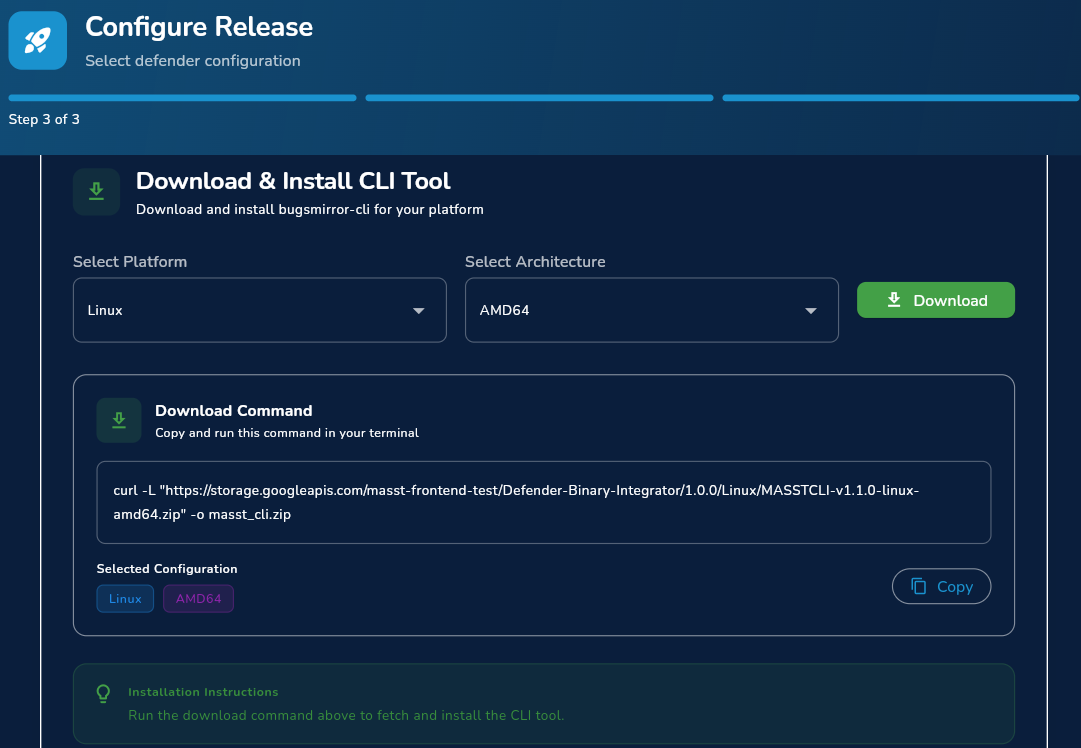
MASST requires a CLI tool to integrate the release configuration into your application.
Option 1: Manual Download
- Select:
- Platform (Linux, macOS, Windows)
- Architecture (amd64, arm64, etc.)
- Download the CLI package
Option 2: Download via Command Line
Run the following command in your terminal:
curl \-L https://storage.googleapis.com/masst-frontend-test/Defender-Binary-Integrator/1.0.0/Linux/MASSTCLI-v1.1.0-linux-amd64.zip" \-o masst\_cli.zip
Step 7: Create Release
- After completing all configurations, proceed to create the release.
- The MASST configuration file will be automatically downloaded to your system.